
Here’s how to schedule a recurring text message that sends a message every day of the week:
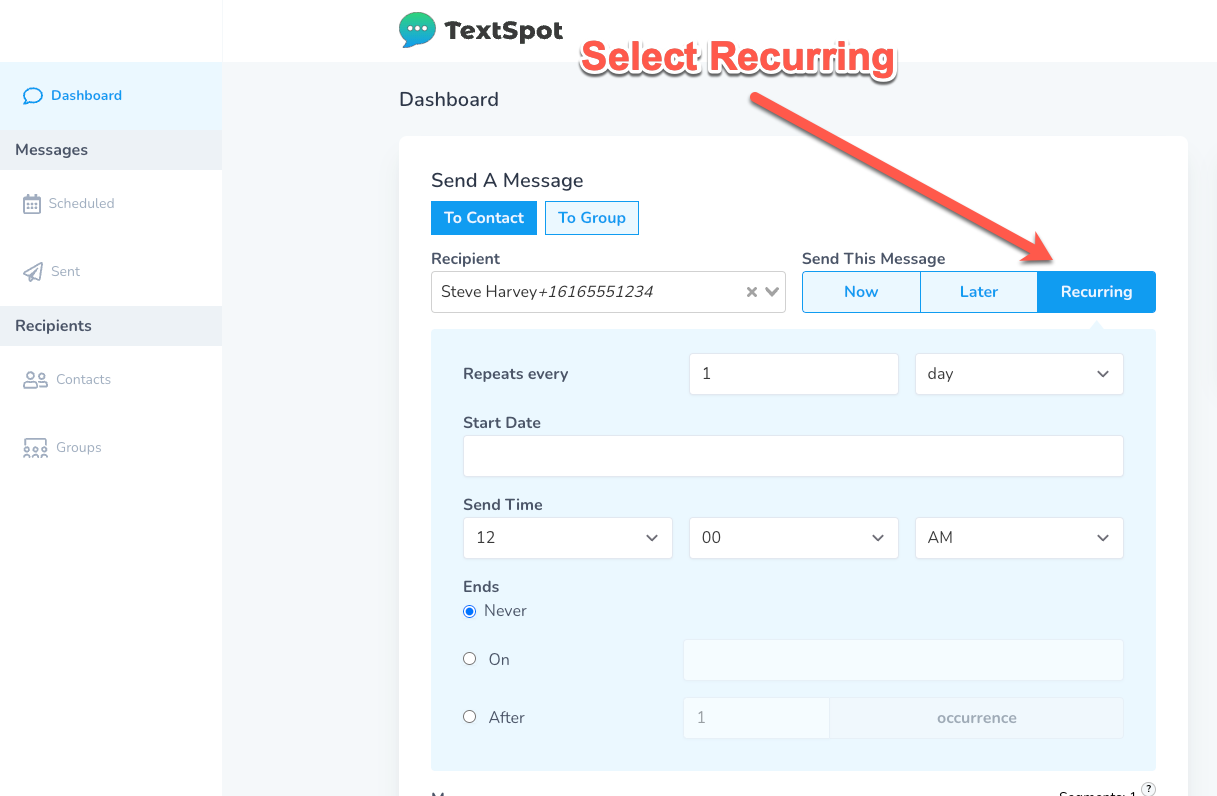
- Create a new message and select whether you will be sending the message to a single contact or list of contacts. Select “Recurring” under “Send This Message.”
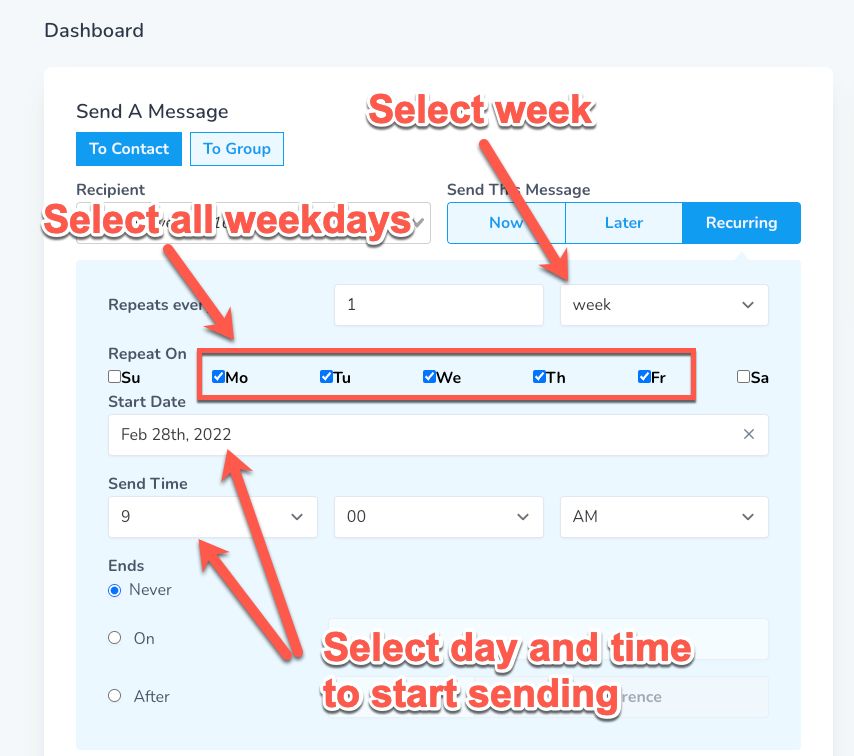
- Select “week” under the “Repeats every” section. This will then provide you with a list of checkboxes for each day of the week you’d like your message to be sent. If you’d like it to be sent every day of the week, select the Monday through Friday checkboxes.Then select the day and time you would like this recurring message to start sending.
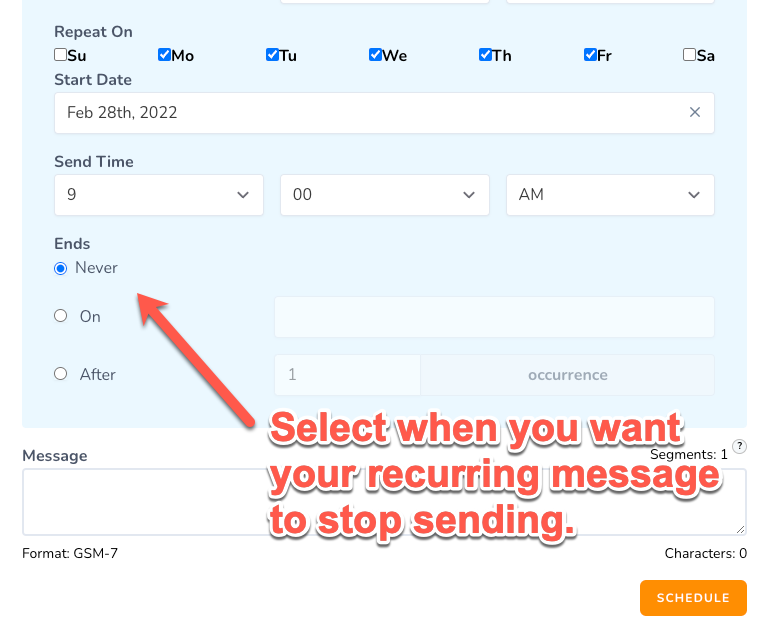
- Finally, select when you would like the recurring text to stop sending or “end.” You can select “Never” which means the recurring text message will send every day of the week until the end of time, or you delete the recurring text from the “Scheduled” section of the TextSpot platform.Once you’ve selected your settings, review your message and select “Schedule.”
Your weekday recurring text message is now set!