
To send a text at a certain time, schedule it in your phone’s messaging app or use a texting service. Which one works depends on your phone and who you’re texting.
The short answer
- iPhone: In Messages, tap +, then Send Later, and pick a time up to 14 days out. This needs iOS 18 or later and iMessage.
- Android: In Google Messages, touch and hold Send, then pick a date and time.
- Mac: In Messages, use Send Later, up to 14 days out. This needs macOS 15 or later and iMessage.
- Any computer or a whole list: Schedule it in TextSpot, which sends from our servers, so your phone can be off. Try it with 50 message credits, no credit card required.
A timed text, also called a scheduled or delayed text, is a message you write now that goes out at a date and time you pick. We checked the steps below against Apple’s, Google’s, and Samsung’s own help pages on October 31, 2026. We didn’t run them on a phone ourselves, and menus can change with software updates.
Ways to Send a Text at a Certain Time, Compared
| Method | How far ahead | Texts Android phones? | Texts a list? | Repeats? | Sends with your phone off? |
|---|---|---|---|---|---|
| iPhone Send Later | Up to 14 days | Not over SMS or RCS. See the catch below. | No | No | Yes, Apple holds and delivers it |
| iPhone Shortcuts automation | Set by the automation | Yes | The recipients you pick | Yes | No, it runs on your phone |
| Google Messages (Android) | Google doesn’t publish a limit | Yes | No | No | No, it sends when your phone reconnects |
| TextSpot | Any future date | Yes, any U.S. mobile number | Yes, one contact or a whole list | Yes | Yes, it sends from our servers |
Sources: Apple iPhone User Guide, Apple Shortcuts guide, Messages for Mac guide, and Google Messages Help, checked October 31, 2026.
How to Send a Text at a Certain Time on iPhone
Since iOS 18, the Messages app has a built-in Send Later option:
- Open Messages and go to the conversation, or start a new one.
- Tap the + button, then tap Send Later.
- Tap the time, then choose when the message should go out. You can pick up to 14 days ahead.
- Type your message and tap the send arrow. It appears with a dashed outline until it’s sent.
Apple says the message is delivered even if all your devices are offline, and that the recipient won’t know it was scheduled.
The catch: Send Later needs iMessage
Apple’s guide says you must be using iMessage, and that your recipient can use any device. iPhone Life reports that Send Later doesn’t work for SMS or RCS conversations, which are the green bubbles you usually get when you text an Android phone. If you don’t see Send Later in a green-bubble thread, that’s the likely reason.
Texting an Android phone, or using an older iPhone
Use a Shortcuts automation instead:
- In the Shortcuts app, create a new shortcut and add the Send Message action with your message and recipient.
- Tap Edit, then Automation, and choose Time of Day. Set the time and how often it repeats.
- To send without being asked first, tap Edit, tap the Info button, tap Privacy, and turn on Allow Running When Locked.
Those are the steps in Apple’s current guide. On older iOS versions, start from the Automation tab and tap Create Personal Automation.
Time of Day automations are built to repeat, so turn the automation off after it runs if you only wanted one text. Your phone has to be on for it to send.
How to Send a Text at a Certain Time on Android
Google Messages has scheduled sending built in, on Android 7.0 and up:
- Open a conversation in Google Messages and type your message.
- Touch and hold the Send button.
- Choose a suggested time, or pick your own date and time, then tap Next.
- Tap Send.
Google says that if your phone has no Wi-Fi or data at the scheduled time, the message goes out when it reconnects.
What about Samsung Messages?
Samsung discontinued Samsung Messages in the U.S. on July 6, 2026 for Galaxy phones running Android 12 or newer, and points users to Google Messages. On those phones, use the steps above. On an older Galaxy that still has the app, open a new message, tap the + button, tap Schedule message, and set the date and time. Samsung says that can be up to a year ahead.
How to Send a Timed Text from a Computer With TextSpot
TextSpot is built for businesses and organizations. For one personal text, your phone’s free option is usually enough. If you want to text from your computer, reach an Android and an iPhone with the same message, or text more than a few people, TextSpot lets you send timed texts to individuals and groups. It also works when your phone is off, because nothing sends from your phone.
- Create your free account. The trial includes 50 message credits, no credit card required, and lets you text up to 10 contacts.
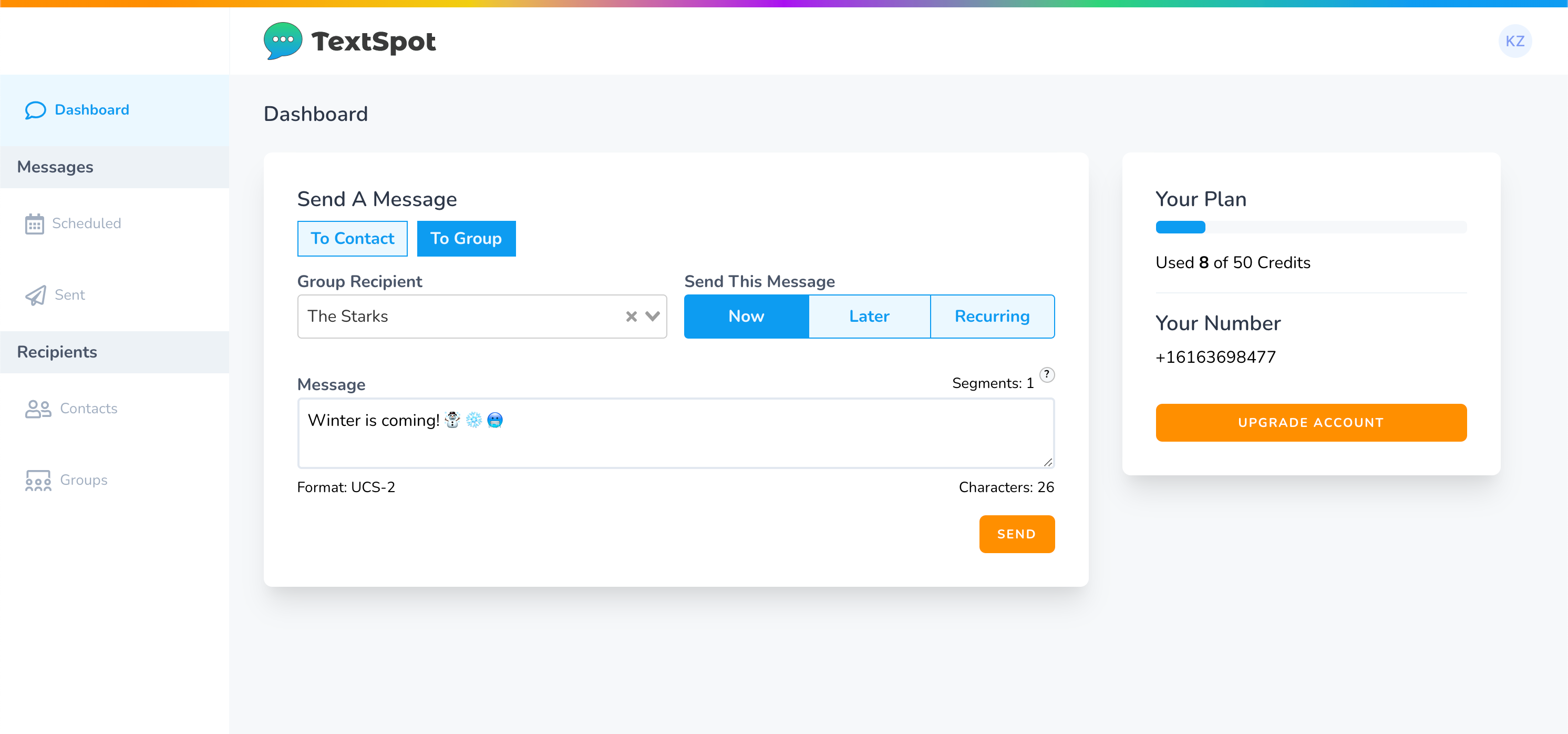
- Go to the Dashboard.
- Under “Send a Message” select a recipient. If you can’t find the recipient, add them as a contact.
- Select “Later” under “Send This Message.”
- Select your date and time, down to the minute, in your time zone.
- Fill out your text message in the message field.
- Select “Schedule” to send a timed text.
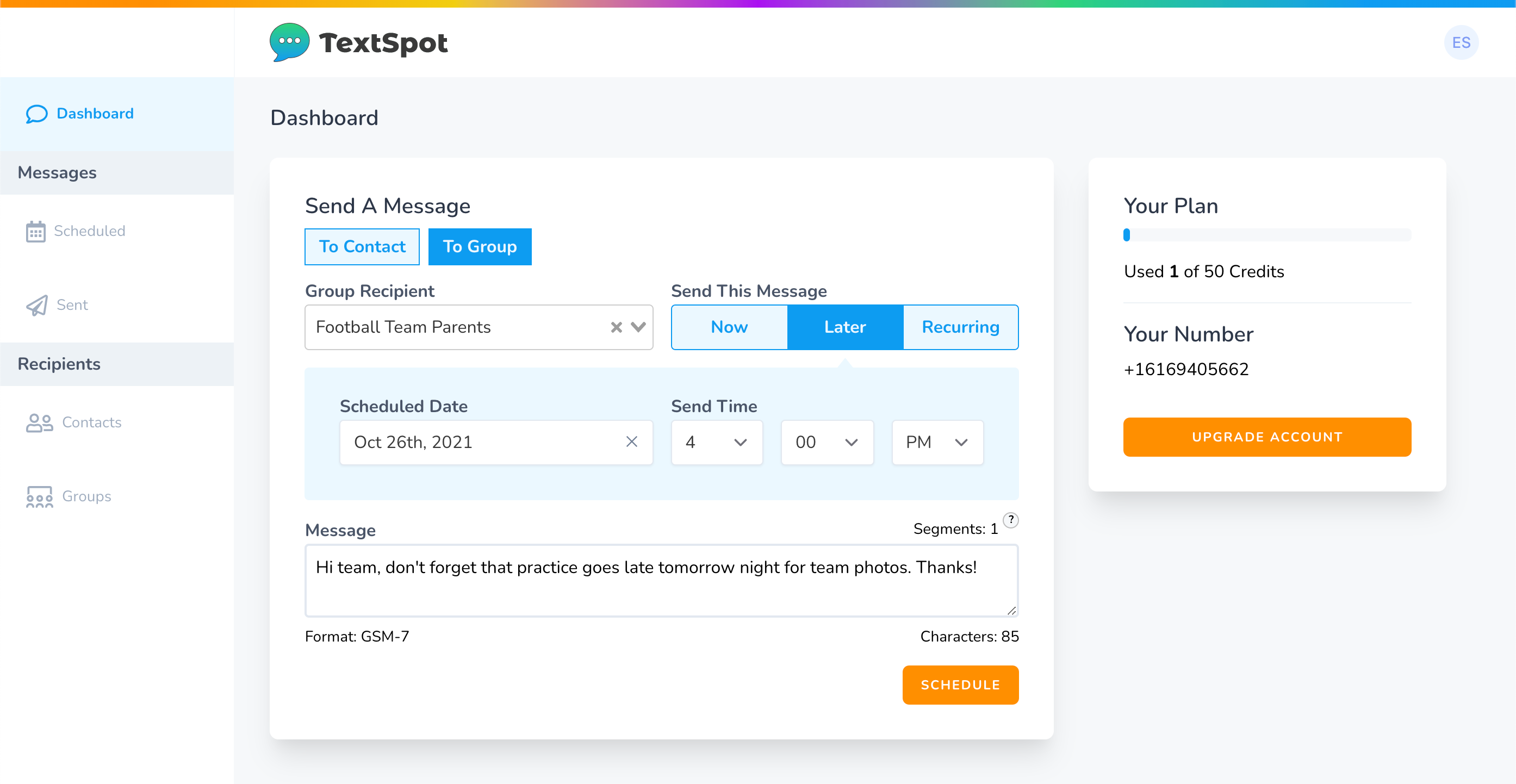
You can change or delete the message anytime before it goes out, from the Scheduled tab. After the trial, see plans and pricing. There is also a one-time $19 carrier registration fee, paid to the carriers, not to TextSpot.
Learn more about the TextSpot scheduling feature, or set your messages to recur if you need the same text to go out on a schedule. For a daily message, see how to send daily texts automatically.
Sending Bulk Timed Texts
Sending bulk messages at a scheduled time with TextSpot works the same way. Instead of selecting a single contact, choose “To List” and pick your list. Learn more about sending mass timed texts to a list. Only text people who opted in, and give them a way to opt out.
When a Timed Text Helps
- It’s too late or too early to text someone right now.
- You don’t want to forget a birthday.
- You need to remind family or friends about something.
- You send customers or patients reminders ahead of an appointment.
If none of these tools fit, a reminder app can at least tell you when to send the text yourself. You’ll still have to press send.
Related Questions
Can you send a text at a certain time on iPhone to an Android user?
Probably not with Send Later. It requires iMessage, and iPhone Life reports it doesn’t work for SMS or RCS, which is how texts reach Android phones. Use a Shortcuts automation, which sends from your phone, or schedule the text in TextSpot, which reaches any U.S. mobile number.
Can you set a timer to send a text?
Yes. Your phone doesn’t count down a timer, but you can pick the exact date and time. Use Send Later on iPhone, hold the Send button in Google Messages on Android, or choose Later in TextSpot.
How do you send a delayed text on an iPhone?
Use Send Later in Messages on iOS 18 or later: tap +, tap Send Later, and pick a time. A delayed text and a timed text are the same thing.
How do I edit or cancel a scheduled text?
On iPhone, touch and hold the scheduled message, then tap Edit or Delete. You need to be online to do this. In Google Messages, open the conversation and tap the Schedule icon next to the message. In TextSpot, go to the Scheduled tab.