
If you are using an iPhone, you cannot use the Messages app to send a timed text message. If you are using an Android device, you can send a timed text.
If you are trying to send a text from your computer you can send a timed text using TextSpot.
What is a Timed Text?
A timed text can be defined as an SMS message that is scheduled to be sent once or more than once at a later time. Timed texts have a clock or timer set programmatically so that they can be sent at a predetermined time and/or interval.
Why Send a Timed Text?
There are hundreds of reasons why you might need to send a timed text message.
- Personal reminders.
- Reminders to family or friends.
- Patient or customer reminders.
- It’s too late or too early to text someone.
- Setting up birthday text messages so you don’t forget them.
Send a timed text is important for both personal uses and for business use. Scheduled messages solve a real problem, and SMS is one of the most effective ways of communicating your message.
How to Send a Timed Text with an Android Device
Google recently released a version of Google Messages that allows you to send a timed text or schedule a text for later. Here’s how:
- Make sure you have downloaded the latest version of Google Messages.
- Open up Google Messages on your Android phone and select who you want to send a timed text to.
- Write your text message.
- Tap and hold the send button and a schedule menu will pop up.
- Choose when you’d like to send your timed text.
That’s it. Now you’ve scheduled a timed text.
How to Send a Timed Text with an iPhone
Although you cannot send a timed text with the iPhone Messages app (your default messaging app), you do have a couple of alternative options.
- Use a third-party app like the Scheduled App. This app does have a free and premium version. The free version will just remind you when to send your text. So it doesn’t actually send a timed text for you. The paid version does, however.
- The Shortcuts app on your iPhone. This will allow you to set up an automation that will send a timed text to any contact on your phone.
How To Send a Timed Text With TextSpot
TextSpot allows you to send timed text messages to individuals and groups. You can even set your messages to recur or repeat regularly.
- Create your free account.
- Go to the Dashboard.
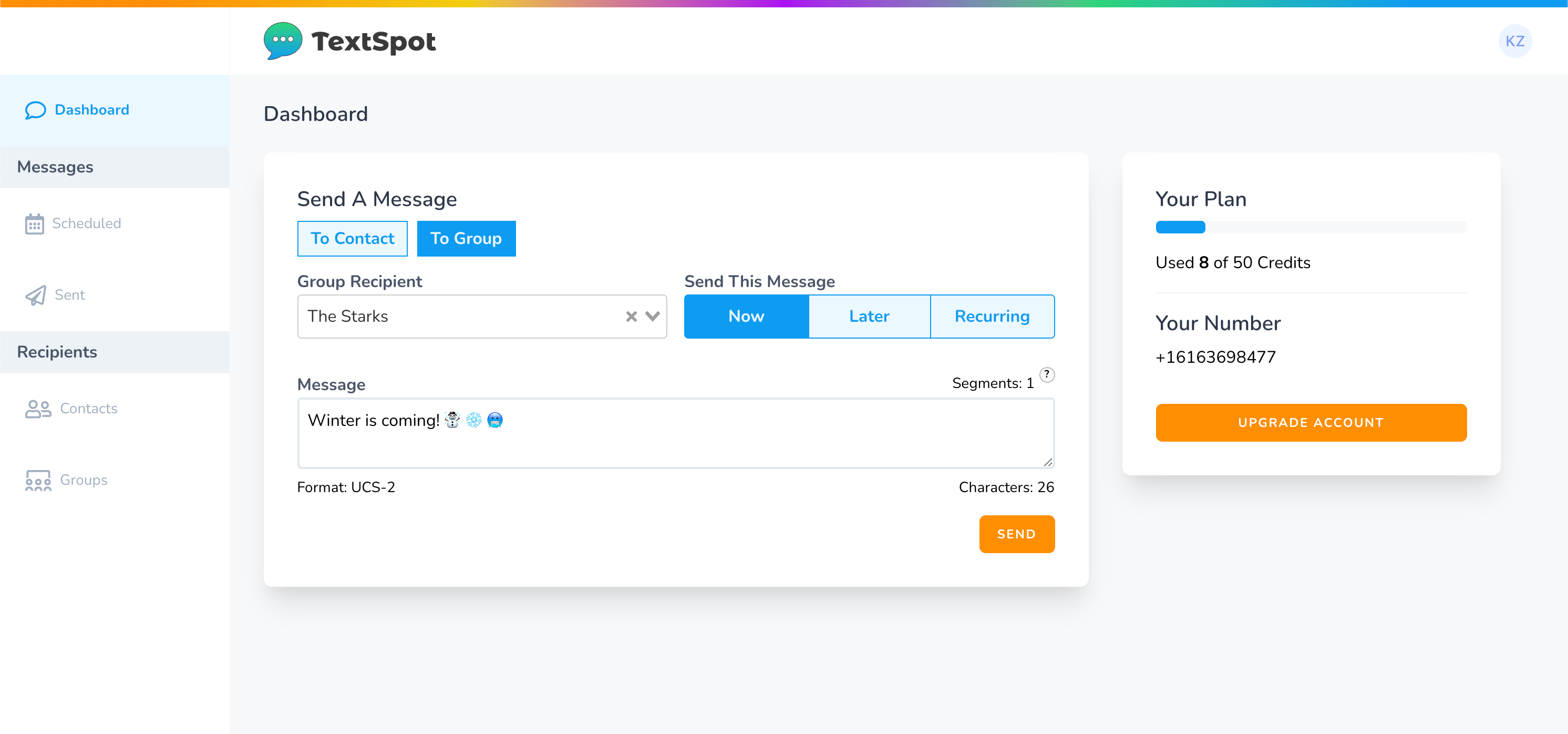
- Under “Send a Message” select a recipient (if you can’t find the recipient, add them as a contact).
- Select “Later” under “Send Message.”
- Select your date and time.
- Fill out your text message in the message field.
- Select “Schedule” to send a timed text.
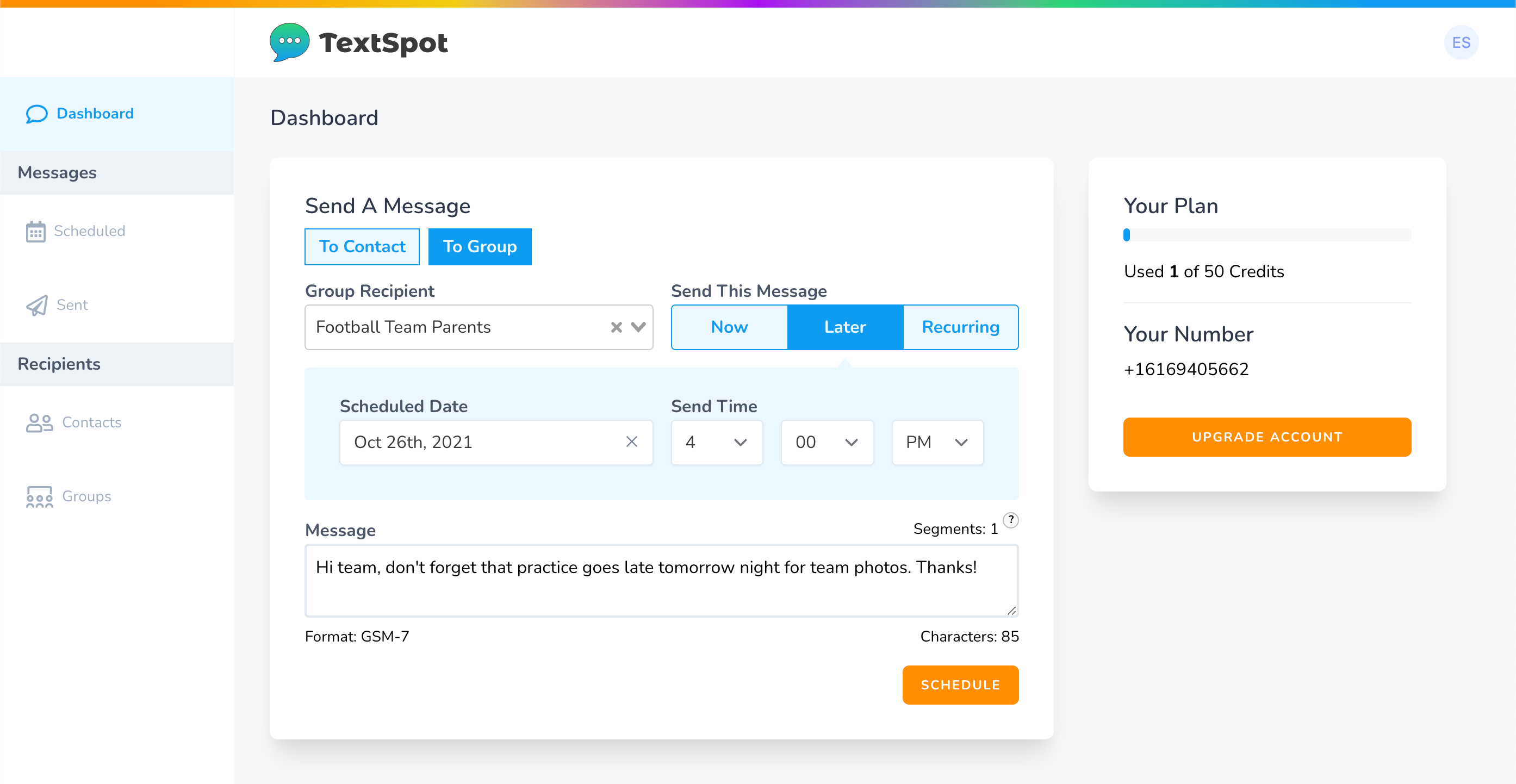
Learn more about the TextSpot scheduling feature.
Sending Bulk Timed Texts
Sending bulk messages at a scheduled time with TextSpot is just as easy. The only difference is that instead of selecting a single contact, you select a group. Learn more about sending mass timed texts to a group.
Send a Timed Text by Scheduling Reminders
If you don’t like any of the other options, you can always consider using your phone’s reminder app or a reminder app of your choice to remind you to send a text at a certain time in the future. It’s not exactly a set and forget it option, but it can help you send text messages at the time you’d like them to be sent.
Related Questions
How do you send a delayed text on an iPhone?
You can either use a third-party app like Scheduled or set up an automation with the Shortcuts app on your iPhone.
How do you send a delayed text on an iPhone?
Sending a delayed text and a timed text is more or less the same. The options above provide exactly how to send a delayed text message.