How to Send Free Text Message Appointment Reminders
TextSpot allows you to start sending text message appointment reminders with a free trial. Create your free account today to start sending! Get 2 months free with an annual subscription.
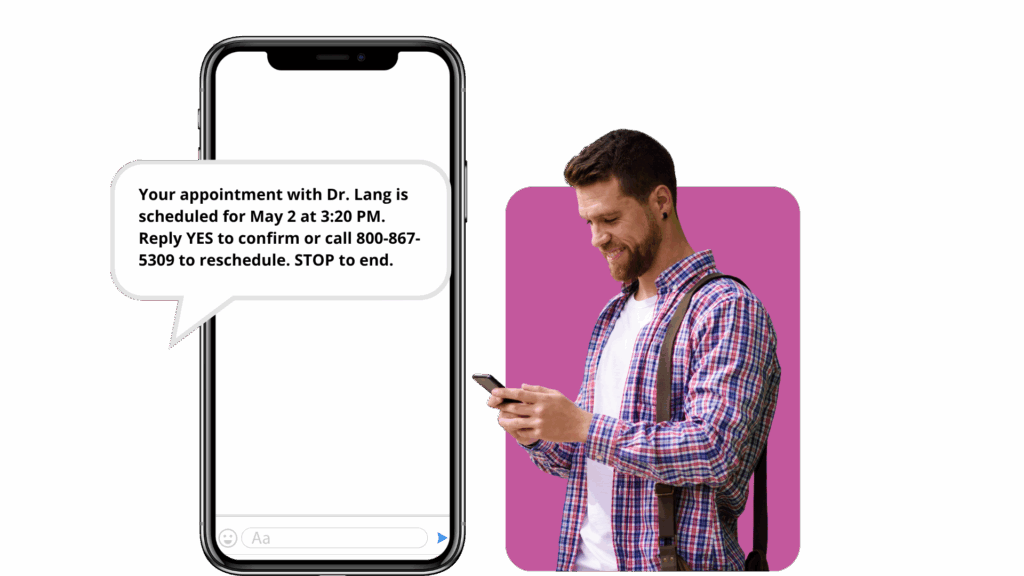
Need fewer no-shows and easier scheduling? Use TextSpot to send automated text reminders straight from your computer. Sign up free, send up to 50 messages during your 14-day trial, and start reminding in minutes.
TextSpot is a cost effective solution for businesses to save time by automating appointment reminders, reducing manual work and increasing efficiency.
A Text Reminder Service for Businesses
According to Text Anywhere, text messages have a 98% open rate. For businesses, this statistic is a huge opportunity, but success still depends on delivering high-quality, transparent, and valuable messaging that builds trust with recipients. Businesses are increasingly using text or SMS reminder software.
Reminders are a great way to:
- Make sure your customers are not forgetting about their appointments, which can save you time and money.
- Show you care about your customer by sending a friendly reminder.
- Increase positive online reviews (more information on that below).
- Use reminder messages to streamline client communication and ensure timely appointments.
Text message appointment reminders can also be used to engage new clients and encourage them to book their first appointment.
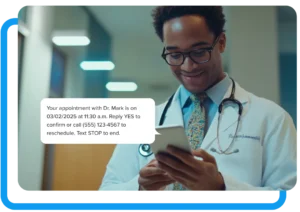
Send Automated Text Reminders
With TextSpot, you can send daily texts or schedule your text message reminders to go regularly on specific days, weeks, months, and even years ahead of when you want them sent. Automated reminders can be set up to notify clients at optimal times, ensuring they receive appointment notifications when they are most likely to see and respond to them.
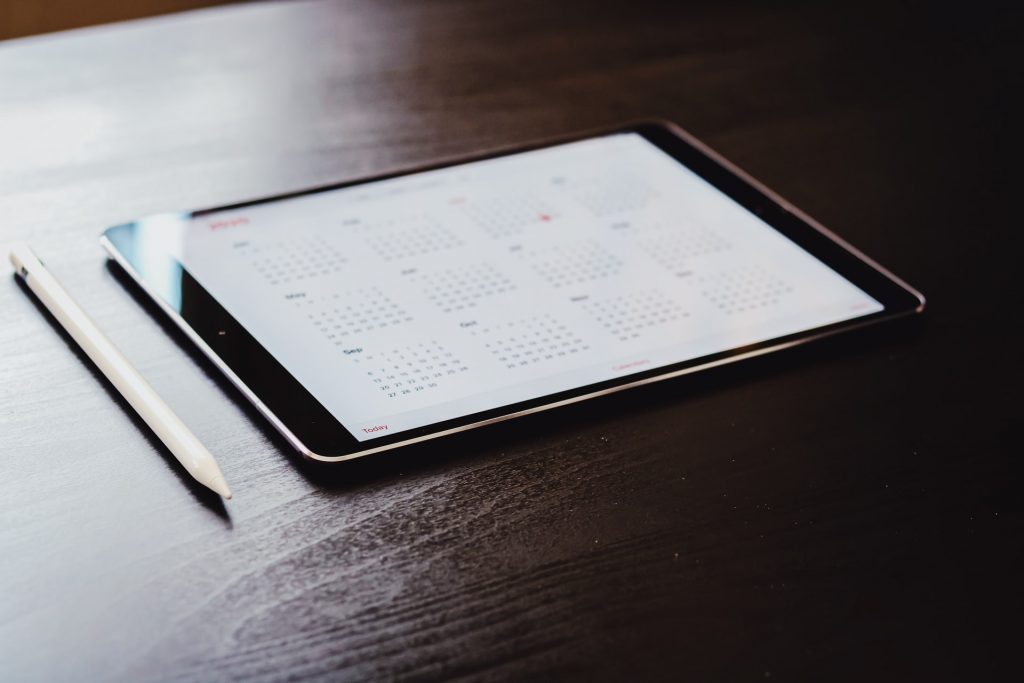
Just connect to Google Calendar or Outlook Calendar to automate your text message reminders. Automatic appointment reminders help reduce no-shows by ensuring clients receive timely notifications and confirmations for their bookings.
Automate Text Messages Today
Automated text reminders are a great way to set it and forget it, so every client or attendee gets notified before their appointment or event.
For example, if you are a dentist, ask patients if they’d like a text, email, phone, or postcard reminder every time they come in for a scheduled cleaning. Chances are, there is a growing number of your patients who would prefer a simple text. Copy their phone number, drop it into a new scheduled text, and you’re done. You can also send confirmation requests via text, email, or phone to proactively verify appointments and reduce no-shows.
Do you need automated text messages? Do you have a current system you’d like to integrate with to send appointment reminders and other automated messages? With TextSpot, it’s possible. You can set up text message appointment reminders and manage them from any computer.
Send Recurring or Repeat Text Messages
With SMS software like TextSpot, you can send recurring text messages. It’s easy to set up. Just select the recipient(s), the interval for when the message repeats, and for how long the message should repeat, and when it should stop sending.
Send Mass Text Messages
With the right software, you can even send blast messages to a group of people to remind them about their scheduled appointment, meeting, or event.
Learn more about sending mass text messages.
Easy to Use and Manage
Text message reminder services are incredibly easy to set up. There are plenty of great services available that make sending and scheduling text message appointment reminders to your customers a breeze. It’s easy as putting in a phone number, selecting your date and time, inputting your message, and scheduling.
Reminder messages are sent directly to your clients’ cell phone, ensuring they receive important updates without disturbing their personal device usage or compromising their privacy.
After that, good software will allow you to manage messages scheduled in your queue and see a record of sent messages.
Integrating with Existing Calendar
Integrating appointment reminder software with your existing calendar is one of the smartest ways to streamline your business and reduce missed appointments. By syncing your Google Calendar, Microsoft Outlook, or any other online calendar with automated appointment reminders, you can manage all your upcoming appointments and send reminders from a single, convenient platform.
With appointment reminder software, you can easily schedule SMS appointment reminders, email appointment reminders, and even phone reminders to go out automatically—no more manual follow-ups or last-minute phone calls. This automation not only saves you valuable business time but also helps reduce no shows by up to 90%. Clients receive timely reminder text messages about their scheduled appointments, making it easy for them to confirm, cancel, or reschedule with just a quick reply.
Setting up your reminders is simple: just connect your existing calendar to the reminder software, choose your customizable templates, and decide when you want your appointment reminder text messages to be sent. You can schedule multiple reminders for each appointment, such as a friendly reminder a week before, another the day before, and a final reminder on the day of the appointment. This ensures your clients never miss an appointment date or time, and you can easily confirm appointments or follow up as needed.
Automated appointment reminders also offer two-way messaging, so clients can respond directly to your reminder texts to confirm or cancel their appointments. This not only improves client communication but also helps you avoid late fees, last minute cancellations, and gaps in your schedule. Whether you’re a business owner running a beauty salon, a healthcare provider, or any service-based business, integrating your calendar with appointment reminder software makes life easier, increases customer engagement, and helps you make more money by reducing no shows.
Ready to start sending appointment reminders and experience all the benefits for yourself? Connect your calendar, set up your reminders, and watch your business run more smoothly than ever.
Market Your Business with Reminder Follow-ups
Warming your customer up to receiving text messages from you, by first sending text message reminders, is a great way to keep an open line of communication with them.
Once your customer gets used to receiving those scheduled text message reminders, they’ll be more inclined to receive marketing-related texts. Be careful with text messages, though. Even more so than email, you need to make sure that what is being sent is incredibly valuable to your customer.
One great way to market your business is by following up with your customer after their appointment with another text.
That text could ask for their feedback. For example:
“How was your experience today at [BUSINESS NAME]? reply back with “good”, “okay”, or “bad” and you’ll be entered to win a monthly $100 Amazon gift card drawing.“
With that reply, you can schedule an automatic follow-up.
If your customer replies to the text with “good,” ask them to leave a review on Google and send a link.
If they reply with “okay” or “bad,” also send them a link, but maybe have that link to a form on your website where the review won’t be public. That feedback will at least help you identify how you can improve the relationship with that particular customer or even improve overall experiences with your business.
This follow-up process creates a win-win situation by helping your business improve its services while making clients feel valued and heard.
What Businesses Should Use Text Message Appointment Reminders?
Any service-based business where your customer or patient schedules appointments. Great for:
Hair Salons
Spas
Chiropractors
Pet Services
Schools
Legal
Dentists
Doctors
Personal Trainers
Pizza Places
Sports Teams
College Athletes
Events
Golf Courses
Gyms & Fitness
Counseling
Home Repair
Photography
Automotive
Churches
Real Estate
Restaurants
Tutoring
Lawn Care & Landscaping
Hotels
Radio Stations
Influencers
Recruiters
SMS Appointment Reminder Examples
Including appointment confirmation and appointment time in your text appointment reminders is essential for clear communication and effective scheduling. By specifying the exact appointment time and requesting confirmation, you help ensure clients are aware of their scheduled services and reduce no-shows. Sending text appointment reminders also allows you to track confirmation statuses and manage appointments efficiently. You can send reminders at different intervals, such as one week before the appointment, to give clients flexibility and ample notice.
Use these templates to send appointment reminders to your clients or patients. Mix and any part of these templates to come up with your own. View more appointment reminder examples by industry and create your own from templates.
- “Hi [CUSTOMER-NAME], this is a reminder that you have an upcoming appointment with [BUSINESS-NAME] on [DATE-TIME].“
- “Hi [CUSTOMER-NAME], this is a reminder that you have an upcoming appointment with [BUSINESS-NAME] on [DATE-TIME]. Please confirm by replying YES.“
- “Hi [CUSTOMER-NAME], you have an upcoming appointment with [BUSINESS-NAME] on [DATE-TIME].“
- “Hi [CUSTOMER-NAME], don’t forget that you have an upcoming appointment with [BUSINESS-NAME] on [DATE-TIME]. We look forward to seeing you.“
- “Hi [CUSTOMER-NAME], don’t forget that you have an upcoming appointment with [BUSINESS-NAME] on [DATE-TIME]. We look forward to seeing you. Please let us know if you are unable to make it.“
- “Your appointment with us at [BUSINESS-NAME] is confirmed for [DATE-TIME]. We look forward to seeing you!“
- “Your appointment is confirmed for [DATE-TIME]. We look forward to seeing you at [BUSINESS-NAME].“
- “Hi [CUSTOMER-NAME], Your appointment is confirmed for [DATE-TIME]. Please bring [DOCUMENT NAME] with you. We look forward to seeing you at [BUSINESS-NAME].“
- “Hi [CUSTOMER-NAME], don’t forget about your appointment with [BUSINESS-NAME] on [DATE] at [TIME]. Please bring [DOCUMENT NAME] with you. Thanks.”
- “Hi [CUSTOMER-NAME], this is a reminder sent one week before your appointment with [BUSINESS-NAME] on [DATE-TIME]. Please confirm your appointment time by replying YES or contact us if you need to reschedule.“
View more appointment reminder text examples.
Other Appointment Reminders
There are more options than just sending SMS appointment reminders or email reminders. Learn more about your other options for sending appointment reminders.
Frequently Asked Questions
How do you send an appointment reminder by text?
There are many solutions for sending appointment reminders. Many business CRMs have features that allow you to send SMS messages. There are also apps like TextSpot that you can subscribe to send reminders.
Can you text someone a reminder?
Yes. You can text a client, customer, patient, etc. a reminder for their appointment or about their service. The SMS messaging ecosystem is complex, however. Read this guide on U.S. SMS Compliance for more information.
Can I schedule an appointment reminder text?
Yes. With software like TextSpot, you can easily schedule and automate personalized text message appointment reminders to customers and patients.
How do I make an appointment reminder?
You have a few options for making an appointment reminder, including:
- A calendar app like Google Calendar or Outlook.
- Software like TextSpot.
- Reminder apps on your Android or iOS device.
Set & Forget Your Appointment Reminders with TextSpot
Want to let your office staff get back to keeping your business running without having to drop everything to send reminders? Start your free trial of TextSpot and take the first step toward giving them their time back and making no-show appointments a thing of the past.
START FOR FREE. NO CREDIT CARD REQUIRED.
Create Account
Start scheduling, managing, and automating text messages today.
Create Your Free Account
Start scheduling, managing, and automating text messages today.
No credit card required. Takes 3 minutes.
Related Posts
Text From Computer: 7 Easy Ways (Free & Paid)
Send Daily Texts